Building Card
Table of contents
This application is provided by DM to generate the building card. The building card is a summary of the model information and provided infights of the building. The application can be downloaded from here.
Running the Application
Once the app is downloaded, unzip the file locally. The application does not require installation.
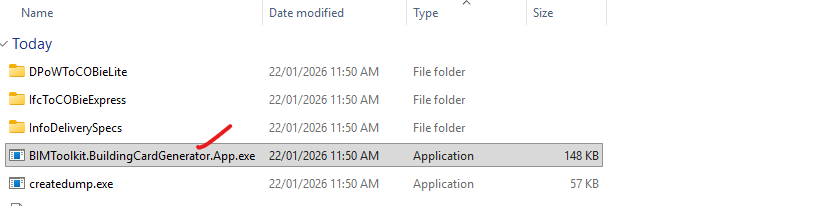
Click on BIMToolkit.BuildingCardGenerator.App.exe to run the app.
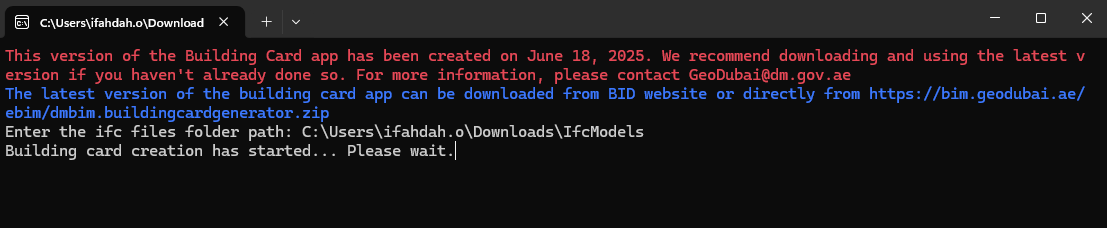
- Place the IFC files you want to check in a folder, copy the folder path, paste it into the app, and press Enter.
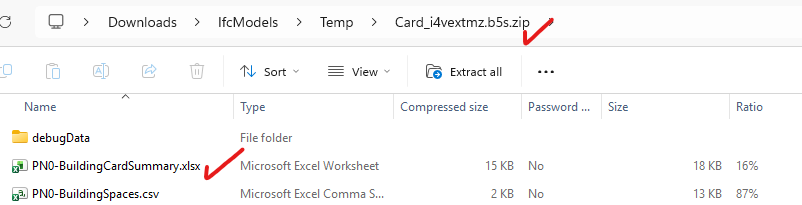
- The results will be saved inside a zip file. Unzip the file and open BuildingCardSummary.xlsx to review the building card.
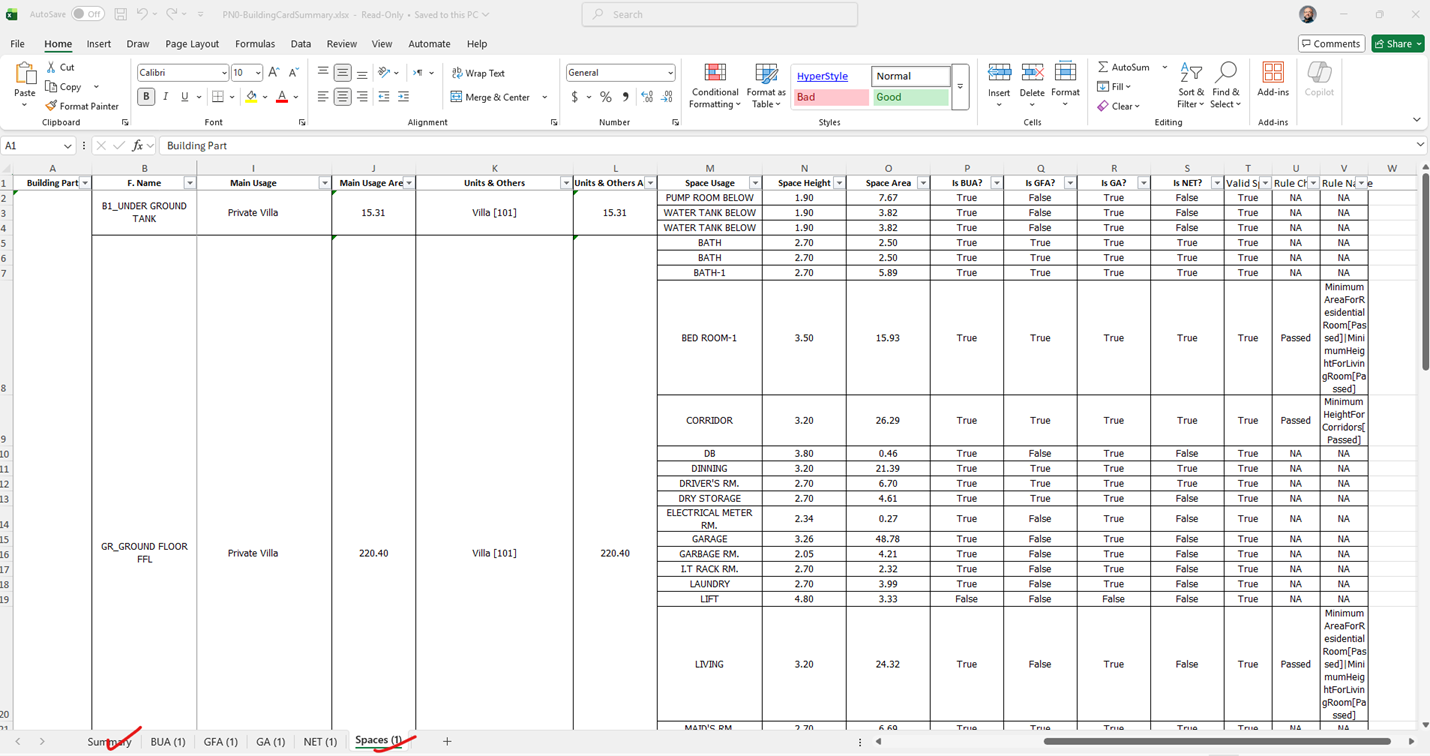
- The building card file includes a “Summary” sheet and a few other sheets that show the details.
How to Read the Card
The first sheet on the building card shows a summary of the data extracted automatically from the BIM model. It is important to verify that the information matches what was provided manually. If the information doesn’t match, you need to check the model information such as space usages.
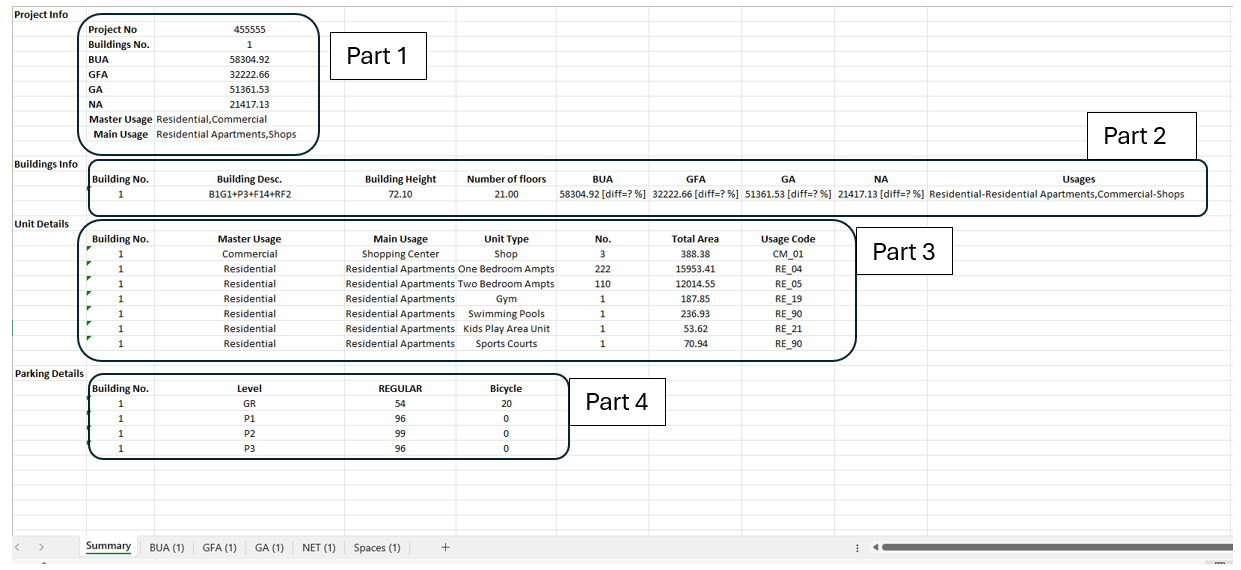
Part 1 (Project Info)
In the Project Info section, it is important to check that the building usages and total areas are correct. The BUA, GFA, GA, and NA areas are calculated using space areas and including walls/columns areas as per Dubai Building Code. Note that the areas might not match exactly the values calculated manually. This is OK as long as the difference is marginal. The other sheets (BAU, GFA, etc.) on the building card show the breakdown of the area calculations. For further breakdown and details when there are issues, please check Storeys.xls and Spaces.xls inside the debug folder of the building card. You only need to visit these files if you need to narrow down the cause of any problem in the building card summary.
Part 2 (Building Info)
Each building in the project will have a dedicated row. The row shows the building description, floor number, areas, and usages. Ensure that the information in each column is correct based on each building.
Part 3 (Unit Details)
This part shows the units in each building grouped by usages. The unit table should match the manual 2D drawings/tables. You can visit the BUA sheet to ensure that the units are added correctly. Check the unit hyperlinks and confirm that spaces are correctly grouped under the appropriate unit usage. A common mistake is that modelers include services and circulation spaces in units.
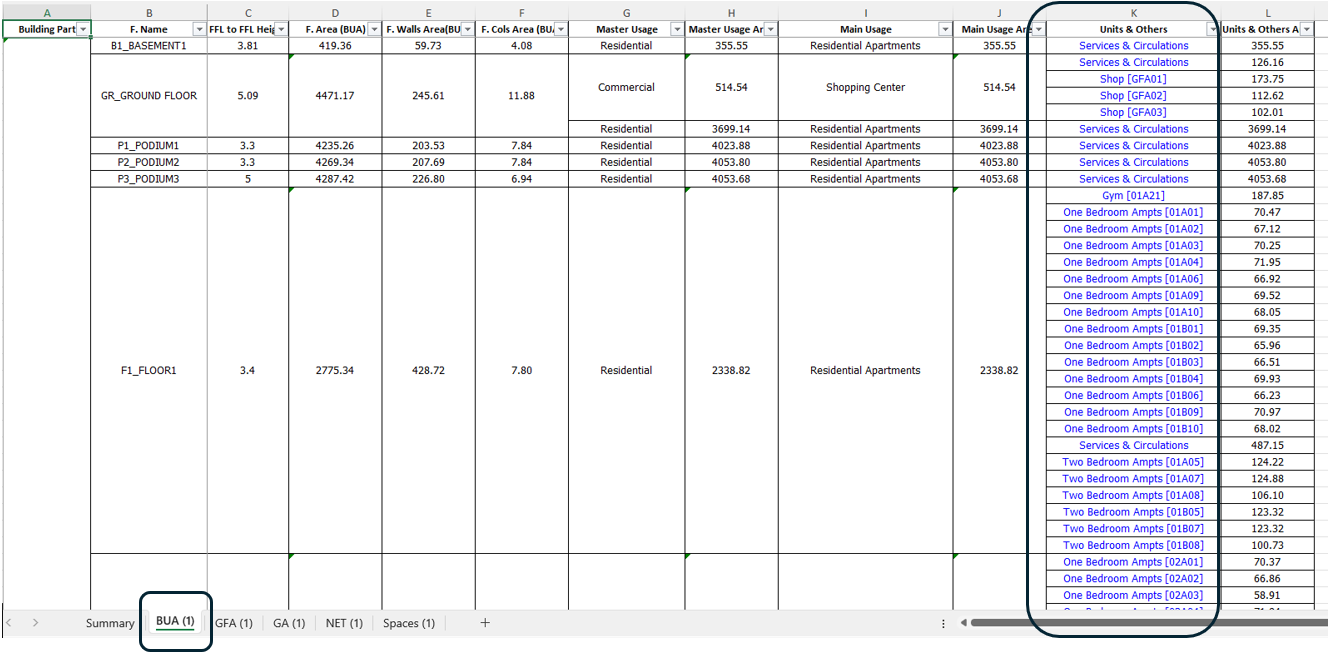
Part 4 (Parking Details)
Ensure that the parking table is generated and that parking usage and count are listed correctly on the table (REGULAR, BUS, BICYCLE, etc.) and match the calculation sheet.