Frequently Asked Technical Questions
This document contains a list of common technical questions the BIM Support team has received in relation to BIM submissions. The document is divided into four sections for ease of navigation: Model Preparation, Model Submission, Submission Self-Assessment and Misc. For general questions on the BIM mandate, please check https://buildindubai.gov.ae/bim
Model Preparation
Q1: I am working on a new BIM model, and it is required that the project complies with DM BIM standards, where shall I get the standard documentation?
The DM BIM standard and all other materials are available on BuildInDubai website. Please note that the standard and the materials can be updated regularly so it is recommended to download and use the latest whenever possible.
Q2: I am working on a new BIM model, should I use the template provided with the DM BIM templates or use my company template?
No, you can use your company template. It is recommended though to use the DM BIM template supplied with the DM BIM standard. The DM BIM template has been set up to work with the DM BIM standard requirements and ensure a smoother process when exporting the BIM model to IFC. The BIM templates for commonly used BIM authoring tools provided by DM can be download from https://buildindubai.gov.ae/bim
Q3: Is there any specific BIM authoring tool I should use to comply with the DM BIM standard?
No. The DM BIM standard is not aligned with any commercial BIM authoring tool. The final submissions should be in openBIM IFC schema.
Q4: I am using Revit for modelling; do you have any guidelines to use when using Revit?
Yes. Please check the BIM E-Submission_Revit Appendix.pdf from the standard for details.
Q5: The Appendix-B in the standard requests some information related to the site, project and building entities. How should I fill in the information in my BIM model?
If you are using Revit, you can enter the required information in the Project Information box. This can be found under the Manage tab. For other BIM authoring tools, the process would be similar. You can always export the model at any time to IFC and check locally using IFC viewer if the information for these entities is provided correctly.
Q6: My BIM model is very large, can I split the model into multiple IFC files?
Yes. It is very important though for the file names to follow the naming convention in the standard.
Please note that if you are using Revit for modeling, it is important for Revit files to share the location of the Internal Origin point relative to the Survey point. This setup ensures that the IFC models exported from Revit share the same local coordinate systems. This is useful for cases when all IFC models are displayed or processed relative to the local coordinate system, not the real-world coordinate system (the IfcSite coordinates). Check the BIM E-Submission_Revit Appendix.pdf for details.
Q7: My project contains multiple buildings. How should I export the BIM model to IFC files, and if buildings are made of multiple parts such as podium and towers, how should I export the BIM model to IFC files?
It is very important to submit the IFC models as required by the DM BIM standard. Please ensure submitted models meet the following conditions:
Each IFC model should belong to a single building. A building on the other hand can be split into multiple IFC files.
Architectural and structural models should be in separate IFC files.
Specify the BuildingNum attribute in the IFC model. For the Building entity, as per the standard Appendix-B, the BuildingNum attribute must be filled in. The value represents the building number in the project (e.g. 1,2 etc.). The value starts from 1.
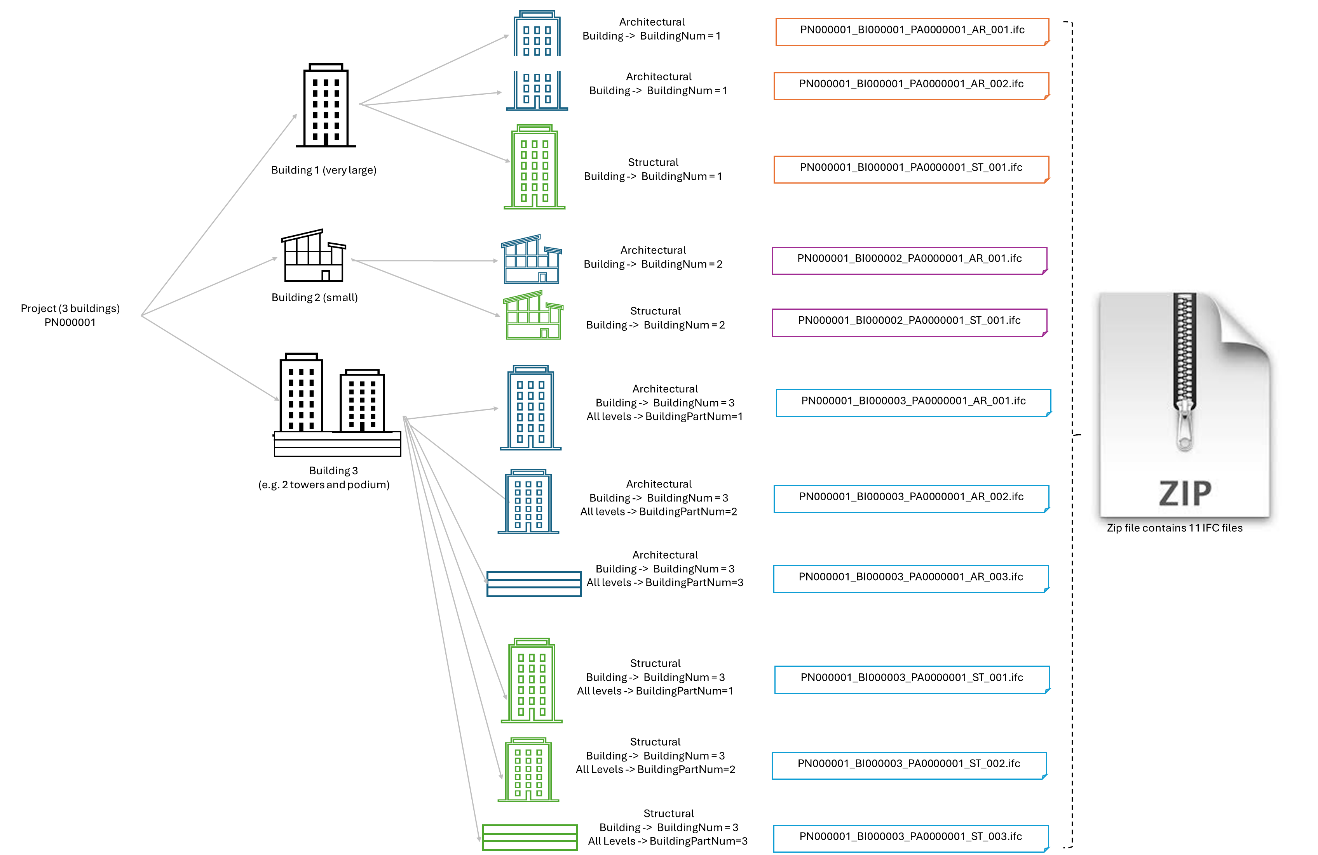
Specify the BuildingPartNum attribute for levels in the IFC model. BuildingPartNum is not always required. BuildingPartNum is only required when a building is made of multiple parts. The BuildingPartNum attribute value represents the part number. For example, for podium levels, the BuildingPartNum=1 and for first tower levels, the value is 2 and so on.
Figure below shows how to deal with a project with multiple buildings and when a building is made of multiple parts.
Help Videos:
Successful Dubai Municipality BIM Submission: A Step by Step Guide
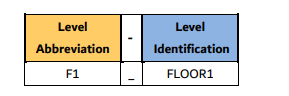
Q8: We have internally our convention for level naming, do we have to follow the DM BIM standard level naming conventions and why?
Yes, you must follow the DM level naming standard for the required levels in the model. However, after the level abbreviation and underscore you can use your own level identification.
Q9: Do we have to follow the DM BIM object naming conventions
No. The one in the standard is recommended but you can follow your own object naming conventions.
Q10: What are the standard documents I need to use to comply with the minimum information requirements?
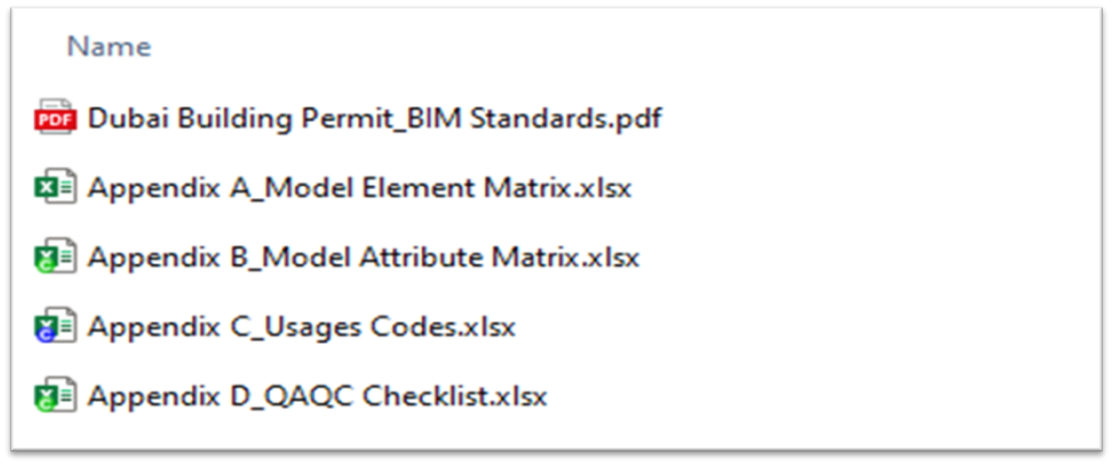
Besides the main document DubaiBuildingPermitBIMStandards.pdf, the information requirements are defined in Appendix-B and building, unit and space usages are defined in Appendix-C.
Help Videos:
Q11: Is it required to fill in all information in Appendix-B?
No, you only need to fill in the required attributes. For each entity, Appendix-B lists the required attributes. Some attributes are not required for preliminary permit.
Q12: I see that there is some information required to be added to the model as per the Appendix-B, but this doesn’t apply to my model, what should I do?
If you are sure the information doesn’t apply to an entity, you can place a default value for the type of the property. E.g. Fire rating =0 when the fire rating is not applicable in your case.
Q13: What is Appendix-C For?
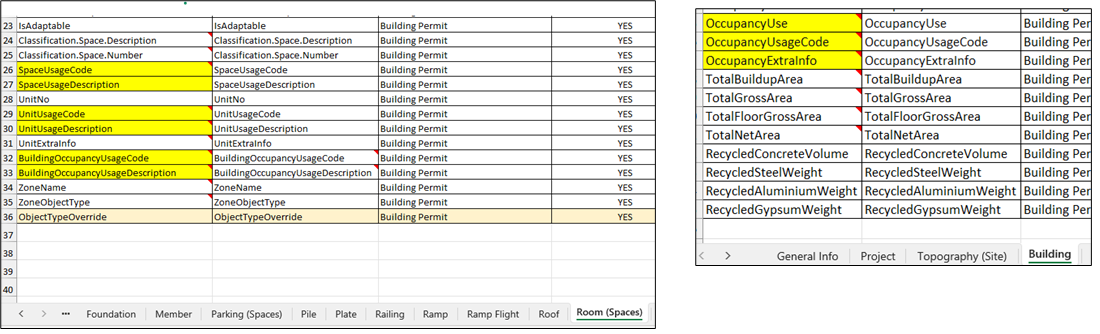
Appendix-C lists the building, unit and space usages. For Building and Spaces, the values of the highlighted attributes in the figure below should be filled in from the list defined in Appendix-C depending on each space usage.
Q14: I am filling in the building, unit and space usages as per Appendix C, what should I do if I don’t find the usage I am looking for in Appendix C?
The Appendix-C list is very comprehensive but if you cannot find the usage you are looking for or if you are not sure about a usage, please contact the BIM support team for help.
Q15: Can I check if I am entering the model information requirement correctly in an early stage of modeling?
Yes. You can export your model to IFC and upload it to the BIM platform for self-assessment. For this, you need to create a BIM session under BuildInDubai website. The session doesn’t need to be linked to any permit application until you are ready. Besides checking the model on the platform, you can also run some checks on the model quality locally. Desktop tools such as an IFC viewer and the DM BIM QA\QC and building card apps can be used to check model quality locally.
Help Videos:
Q16: I am pressed on time, what are the most important entities in the BIM submission I should care about and why?
All entities defined in the standard should have their information filled in, but spaces and key architectural entities are especially important. Spaces information is very crucial for the platform to automatically generate the building card and calculate BUA, GFA, GA and NA.
Q17: I feel I need to enter lots of information, how can I speed up the process of filling in the information?
The best way to manage this is by creating schedules for elements. Using plugins like DiRoots or Dynamo, you can export the schedule to Excel file and then fill in the information and import back the updated Excel file into Revit using the same plugins.
Q18: Under the standard I need to fill in the unit information for spaces, does every space require unit information?
No, unit information is only required for spaces that belong to units and common facilities. For all other spaces, unit information is not required. Make sure to select units from the Appendix C file according to the Building Master Usage.
Help Video:
Q19: Can I still use international classification in my BIM model?
No. For building, unit and space usages, the DM BIM usages must be used as per Appendix-C.
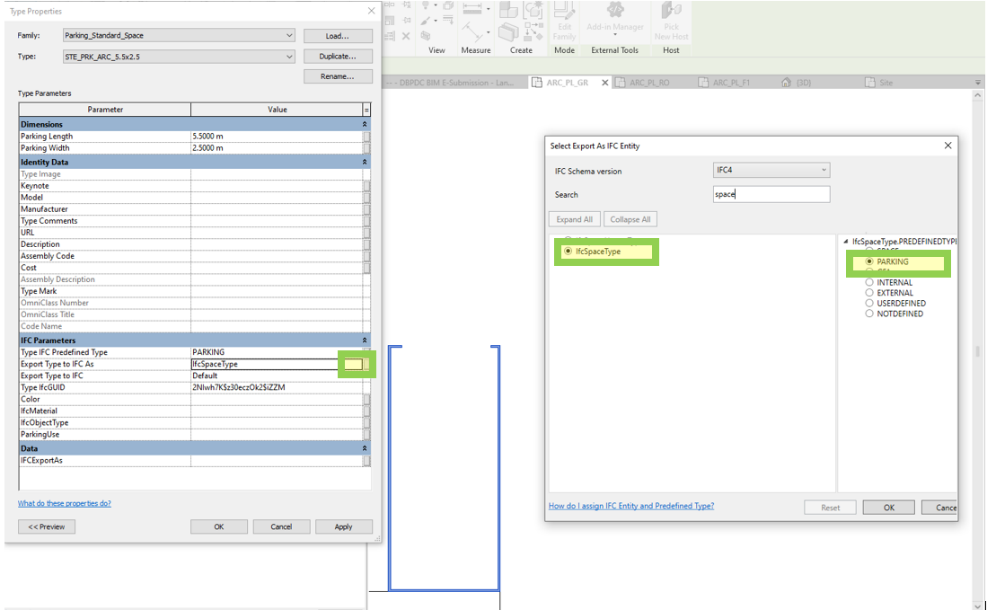
Q20: How to export parking slots to IFC correctly?
Parking slots should be exported to IfcSpace PARKING, for that you must map the parking family, if you are using Revit, to IfcSpace PARKING as shown below. A similar process may be used when using other authoring BIM tools.
Q21: What should I do if the IFC files exported from my BIM model are too large?
If the IFC files exported from the native BIM model only contain the entity types required for BIM submission, the IFC file size will be much less compared to exporting all entity types in the BIM model. It is recommended that you use the export settings provided with our template to ensure only the required entity types are exported. In very rare cases, an IFC compress tool may be used. Please note that IFC files submitted should be zipped in a single zip file and the limit for the zip file is currently 150MB.
Help Videos:
Successful Dubai Municipality BIM Submission: A Step by Step Guide
Q22: The DM BIM guidelines mention that IFC2x3 or IFC4.0 can be used when exporting BIM models to IFC. Which schema should I use?
We highly recommend using IFC4.0 as some users experienced some issues with IFC2.3.
Q23: I zipped the IFC files and still the zip file is larger than 100MB?
This typically happens when unneeded model elements such furniture and cosmetic elements are exported in the IFC files. If you are sure you have done everything possible to reduce the IFC file and still cannot meet the max file size requirement, you can contact the BIM support team for help.
Q24: How to correctly specify the gate level details in my BIM model?
If you consider the gate level ‘DMD’ 3.05 m as ±0 as an example, you should place the project base point at the GA_GateLevel level and set the project base point elevation to 3.05 m. You also need to set the GateLevel attribute required by the standard for the site as 3.05. With this, when you export the model to IFC, the IfcBuildingStorey for the GA_GateLevel level will have a global Z value equal to 3.05m. Figure below shows how to change the elevation of the gate level to the DMD value when using Revit.
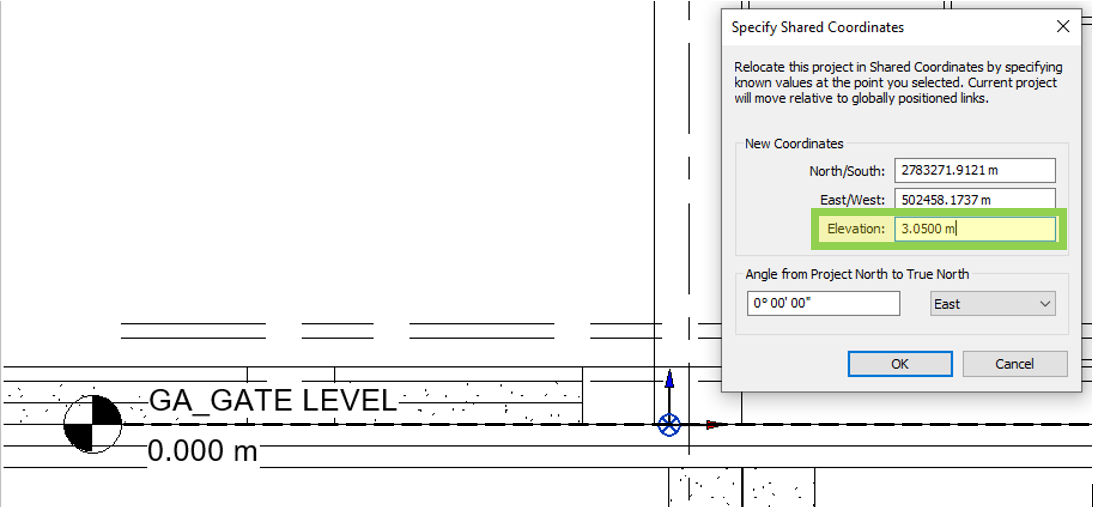
It is also recommended to place the internal origin at the GA_GateLevel level and this will ensure the Global Z coordinate for the IfcSite in the IFC model equal to the gate level input. Check Question for details.
Q25: Should I split model elements such walls, columns and shafts at their corresponding levels and why?
Yes. Elements including walls and columns must be modelled at their corresponding building level. This allows for the footprint area of walls and columns to be calculated in each level for BUA, GA, and GFA. The submitted models to DM would not be accepted if elements are modeled from the ground floor to the roof or if elements are not hosted at their corresponding levels.
Q26: Can we have one space for a shaft from top to bottom or do we need to model it in each level?
No. A shaft space must be added on each level; however, you can have a single shaft opening from bottom to top.
Q27: Even after setting the predefined type for elements in Revit, the value in IFC file is shown as ‘Not Defined’. How can I fix this?
This issue occurs when using our DM Revit template in Revit 2023 or later versions. To resolve the issue, you need to remove the IfcExportAs parameters from your project parameters and use the Revit Built-in IFC mapping parameter.
Q28: Can I export my single Revit project to multiple IFC files without splitting my Revit model?
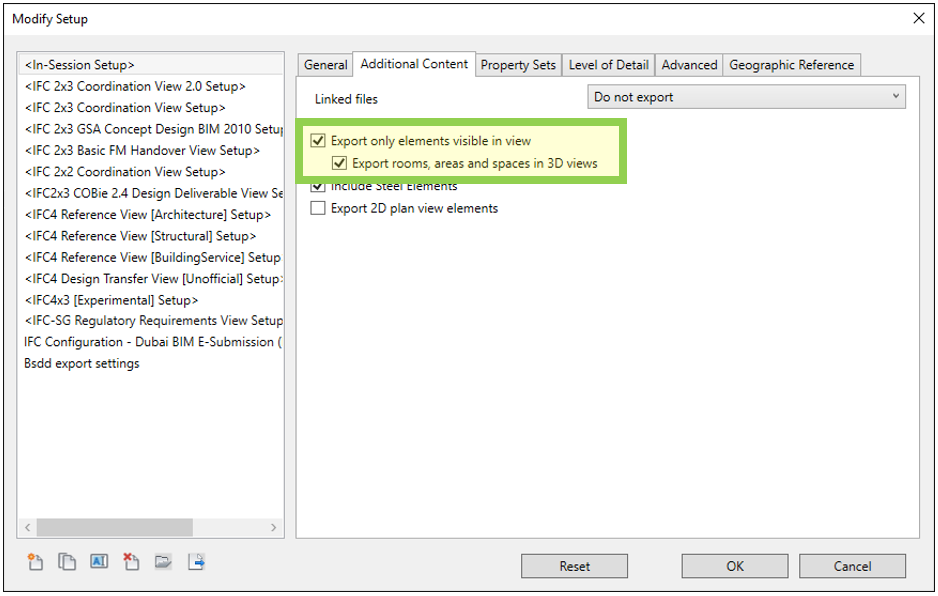
Yes, you can export your Revit project to multiple IFC files without splitting your model. To do this, create a 3D view using a section box, or hide other elements, or use any other suitable method. In the export settings, check the options “Export only elements visible in view” and “Export rooms, areas, and spaces in 3D views” as shown below.
By default, rooms, areas, or spaces are exported even when the Export only elements visible in view is ticked. To exclude rooms, areas, or spaces that are not in the visible view from exporting, you need to select these elements and tick the “not export” attribute on these elements.
Q29: What information do I need to provide for a space that is part of a unit?
When each space that is part of a Floor Unit, the unit info (UnitNo, UnitUsageCode, UnitUsageDescription, UnitExtraInfo) should be specified for the space. Appendix C_Usages Codes need to be used for filling in UnitUsageCode.
Q30: I see that the parking slots have some QA/QC issues, why this happing?
This could happen when the PredefinedType value is not set to “PARKING”. If the PredefinedType value as “PARKING” is not specified, the QA/QC app will treat the elements as a typical IfcSpace.
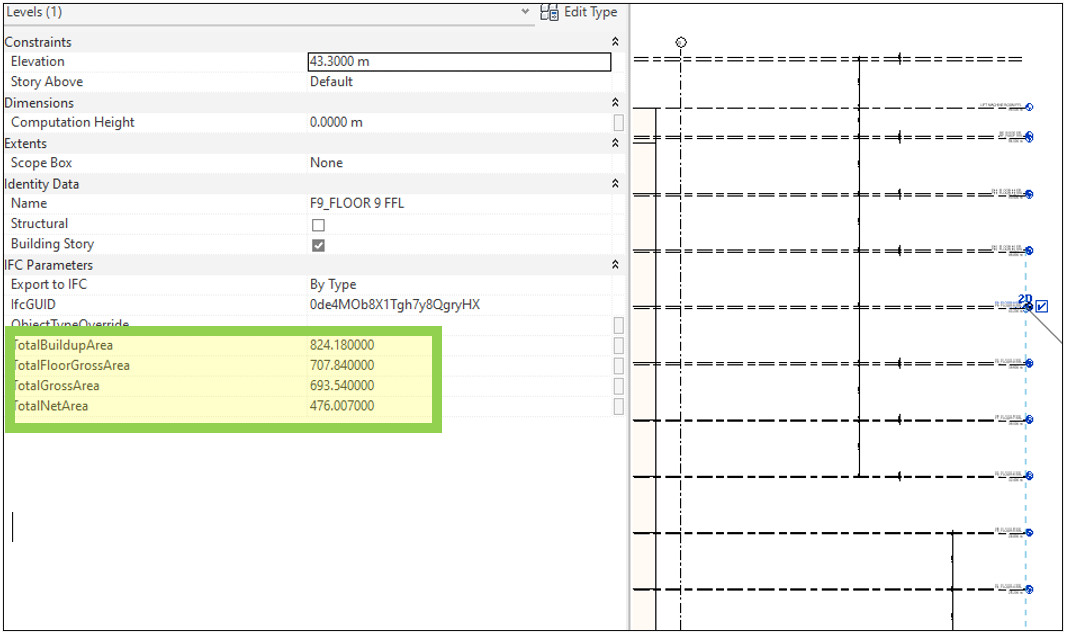
Q31: How to fill in the information requirements defined in Appendix-B for the building levels in my BIM model?
Typically, you need to select each level in the BIM model and add the required parameters/values. The figure below shows how the required area parameters are added to the selected level when the BIM model is created using Revit.
Q32: What should I do if I cannot find the space usage I am looking for from Appendix_C?
If you are not able to find the right space usage from Appendix C. You can contact the BIM support team to assist you choosing the right usage code.
Q33: Should the IfcSpace height when exported from the BIM model mark the ceiling bottom or the structural slab bottom?
| Description | Illustration |
|---|---|
| When there is no false ceiling, the space height is to the lowest structural element point as shown in the image. | 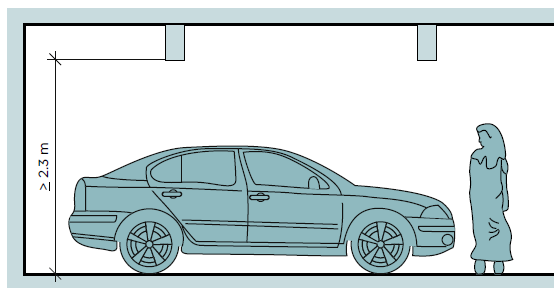 |
| When there is false ceiling, the space height to the lowest point of the bottom of false ceiling as shown in the image. | 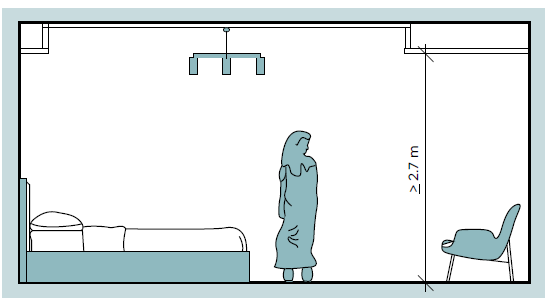 |
Q34: I am a bit confused on level naming, is there an illustration to show how this should be done?
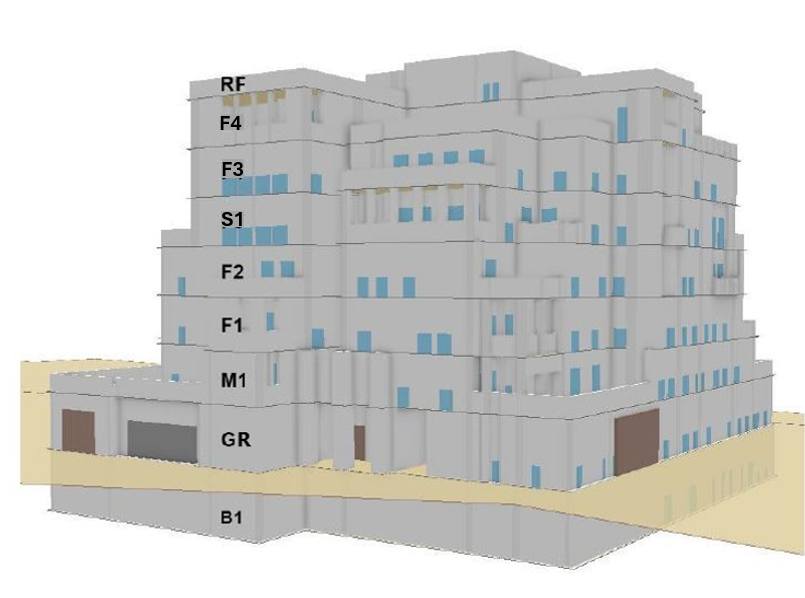
Q35: I noticed that some elements in the IFC model are not hosted in the correct level. Is there a way to fix this issue?
When using Revit, this issue can occur in two cases:
When copying elements from one level to another, the host level may not automatically be changed by Revit.
When there are elements that are hosted in a level that is not set to export to IFC, the elements could end up being hosted on the wrong level.
For the first case, the resolution is by identifying the affected elements in the IFC model and changing the host level in the native model to the correct level.
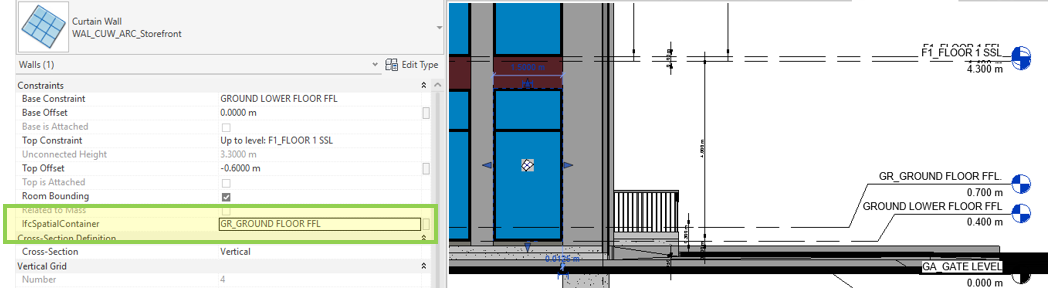
For the second case, a parameter called ‘IfcSpatialContainer’ can be created as shown in the image below and set the parameter values of the affected elements to the desired level name.
Submission Self-Assessment
Q36: Can I check my model quality locally before uploading to the submission platform?
Yes. We actually recommend you checking model quality locally before uploading to the submission platform. The following tools can be used locally to check the model before submission:
BIM Viewer: Using a free IFC viewer can be used to inspect the model visualization and element hosting in each floor. The BIM support team internally use BIMcollab Zoom viewer. The software allows users to checking the model hierarchy tree, level naming, entity properties, and hosting level. The Smartview feature in the software is a powerful tool to find issues in the model. Check APPENDIX III in the standard document for some tooltips on using the software. The viewer can be downloaded from
QAQC App: The application checks if the IFC models have any critical issues. The application can be downloaded from QA\QC app download link
BuildCard Generator App: The application checks the building spaces and generates a list of spreadsheets that are useful to identify any issue with spaces. The application can be downloaded from Building Card Generator app download link
Q37: Why do I see some spaces in my IFC model flying away from their levels?
If there are any gaps between walls and columns, or between walls where they join, the room geometry may extend into these gaps, leading to complex geometry. This can cause errors during IFC export, and the IfcSpace may appear displaced. To avoid this issue, ensure that there are no gaps between room-bounding elements and that the room boundaries are properly enclosed.
Q38: I am using Revit and when I check the exported model to IFC, I see that some IFC properties of type Boolean is exported ‘false’ although it is ticked in my Revit model, what is causing this issue and how to resolve it?
We noticed that in the Revit versions that we tested greyed out Boolean properties, as the ones shown in the figure below, are always either exported as ‘false’ even if they look ticked to the user or not exported at all. This behavior might be intentional by Revit IFC exporter. To resolve this issue, the user needs to explicitly set the value to True/False so the IFC Revit exporter set the correct value in the IFC model.
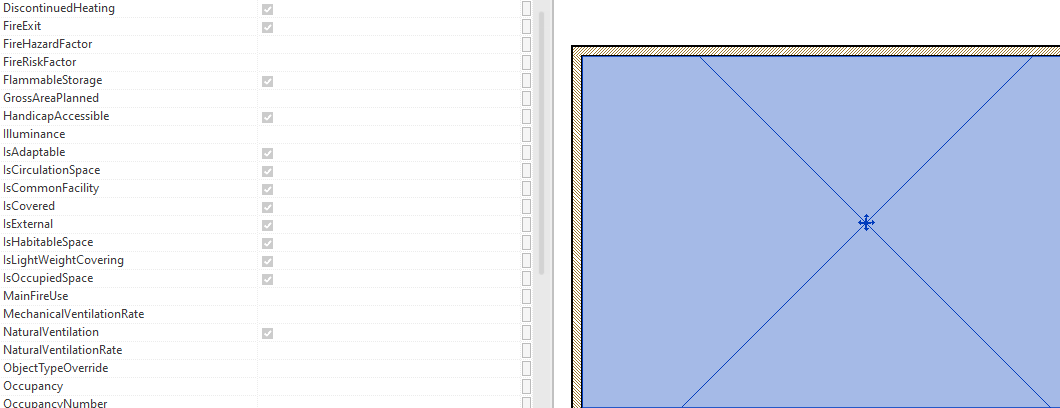
Q39: In the IFC file I see some levels that are not required for submission, is this a problem?
Yes. The IFC files for the BIM submission should include only the GA_GateLevel and RD_RoadLevel and the floor levels. You don’t need to delete other levels in the BIM model that are not required for submission. If you are using Revit, you can switch off the ‘BuildingStorey’ tickbox under the level and this will keep the level in the model but it will not be exported in the IFC model. The figure below shows how a level can be switched off for IFC exporting.
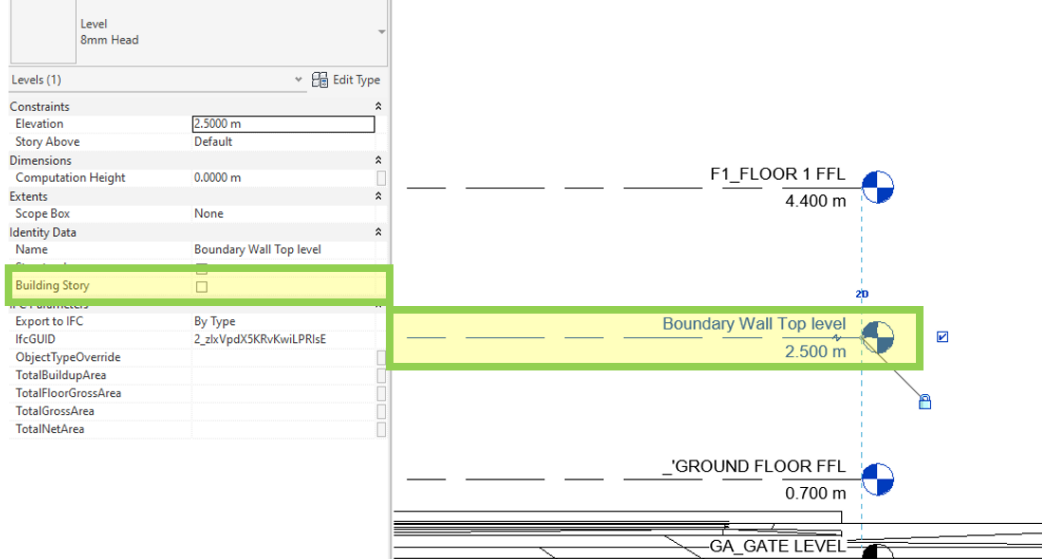
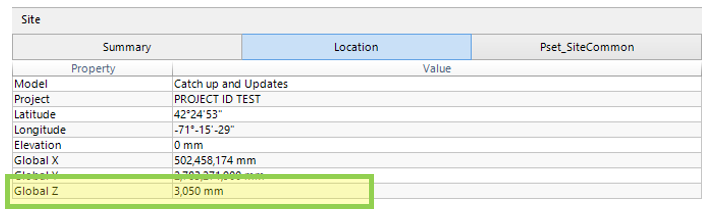
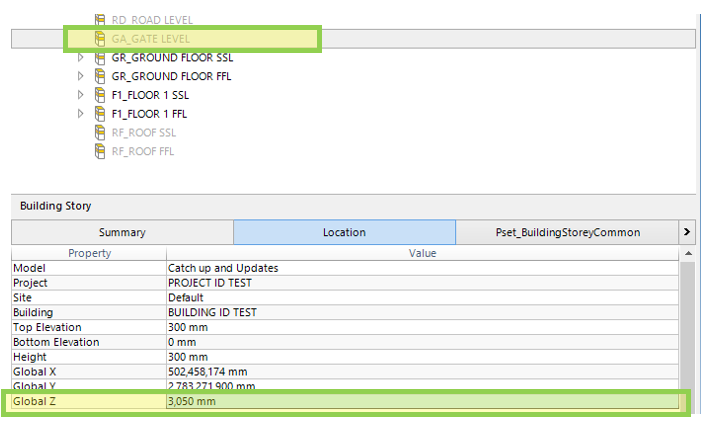
Q40: I checked my IFC files in a desktop IFC viewer and I see that IFC Site Z value is different from the Z value of the GA_GateLevel level, Is this an issue?
No, this is not an issue to worry about. When exporting BIM models from Revit to IFC, the IfcSite location is derived from the internal origin’s location. To ensure that the elevation value (Z) of the IfcSite matches the Z value of the GA_GateLevel level, you need to place the GA_GateLevel level at the internal origin at the start of the modeling process, as the internal origin point cannot be moved like other points (See the screenshot below).

However, if the above is followed and then there has been any change to the gate level elevation, the Z values will not match when exporting to IFC file. Still, this is not an issue as it is mentioned above, just something to keep in mind.
The figures below shows the Z values of the IfcSite and the GA_GateLevel level in the IFC file match when the level and the internal origin’s location coincides.
Q41: The QA/QC app reports many critical issues. What could be the issues in the BIM models?
Check APPENDIX I for a list of common QAQC and their reasons and resolution.
Q42: Why do I see three types of QA\QC issues (Warning, Error and Critical)?
When the platform checks the model information, it will classify any found issues based on their importance or severity. For example, missing information related to generating the building card is classified as Critical.
Q43: How is the building card generated by the Building Card application?
The building card is generated using the information the model information. The validity of the generated card depends on the completeness and the correctness of the model information, so it is very important the right information is provided.
Q44: How are the BUA, GFA, GA and NA areas calculated in the building card?
The building card application follows the rules defined in the Dubai building code when calculating the building areas.
Q45: I downloaded the building card, how can I compare it with manual calculation?
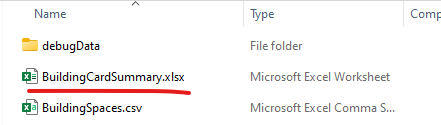
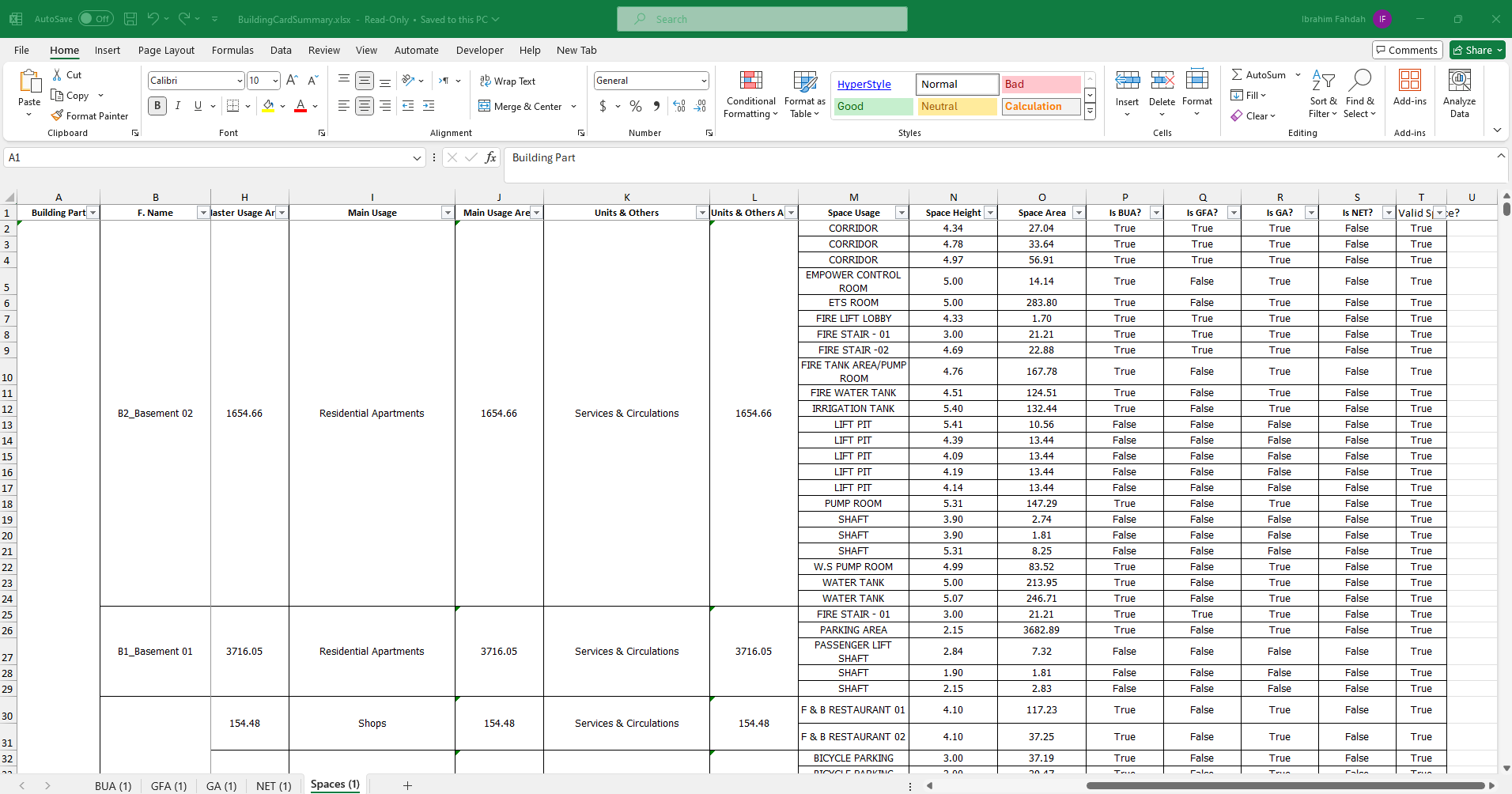
The building card is downloaded as a zip file. Inside the zip file, there is a summary excel file which contains multiple pages.
The Spaces sheet in the file lists all spaces extracted from the BIM model automatically. All spaces should have valid data. If a space is missing any data, the ‘Space Area’ field will have a value of ‘-1’. Other sheets contain the calculation of the building area types, which is mostly the aggregation of the space areas.
Q46: My manual calculation of the building card doesn’t match the value from the platform, why?
There are different reasons why this might be the case. In general, we expect to see less than 5% difference between the areas you manually calculated and the areas in the building card generated by the platform. If the difference is greater, you may need to double check your manual calculation or that all spaces in the model have complete and correct information. Also, make sure the “IsExternal” attribute on the walls and columns are set correctly as this may affect the calculated area.
Model Online Submission
Q47: I have my IFC files ready for submission, what should I do next?
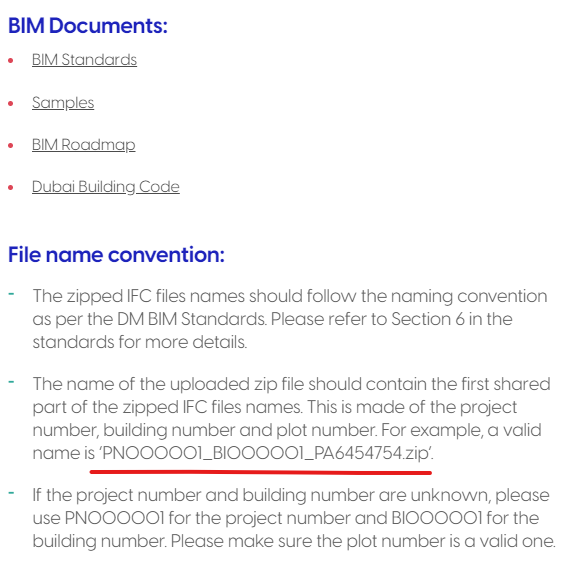
First and for most you need to check that the files are named correctly as per the file naming convention section in DubaiBuildingPermitBIMStandards.pdf. If the files don’t follow the standard convention section, you will get an error when trying to upload the files to the platform. If the files are correctly named, you need to zip them in a single zip file and make sure the files are not in a sub folder and the file size is less than the max allowed. The zip file name should follow the instruction on the upload dialog as shown below.
Q48: Should my BIM submission include any other files besides the IFC models?
No. We only ask for the IFC models. In some cases, we may ask you to include an additional attachment.
Q49: When I try to upload the submission zip file to the BIM service on BuildInDubai website I get an error, what should I do?
When you upload the zip file which contains the IFC files two things will happen. During the upload phase and before processing the IFC models, the file naming convention is checked. If you see an error during the upload step, then it is most likely an issue related to the zip file. On the other hand, if an error happens during the file processing, then it is something with the model itself. Check file naming convention section in DubaiBuildingPermitBIMStandards.pdf
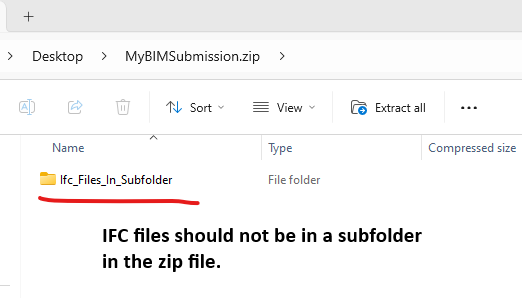
For issues during the upload phase, please make sure the IFC files are not in a sub folder inside the zip file and the file names follow the standard. For issues during model processing, you can contact the support team for help if you cannot find the root cause.
Q50: My model is uploaded successfully to the BuildInDubai site, how I can see it in the platform?
Once the model is uploaded and processed successfully, you can review the model in the BIM platform by clicking on the ‘Open BIM Viewer’ button.
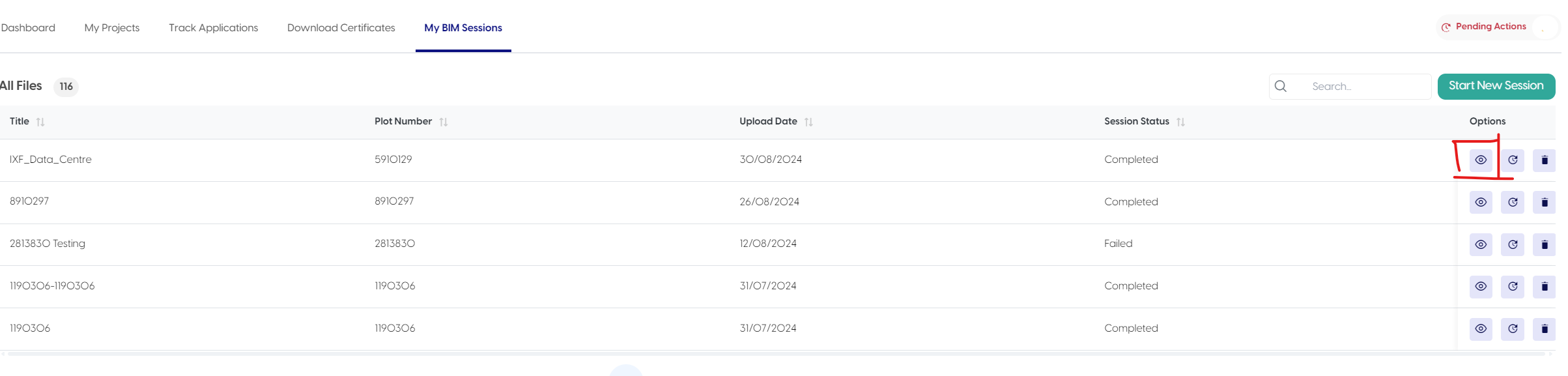
Q51: I successfully uploaded my IFC models to the DM BIM platform, what I should do next?
Once you have the models open in the platform and under the Report tab on the platform, you download the summary report and check if your submission meets the minimum requirements.
In general, there are a few things that you need to check to make sure the submitted models comply with the DM BIM submission requirements. The permitting engineer can only check the BIM model against the building after the submission quality is met. For transparency, the permitting engineer will use the same BIM platform and tools to review the submission quality.
Below is the list of checks to go through yourself before requesting the DM engineer to review your BIM submission.
Naming Conventions: It is very important for to comply with the naming convention as per the DM BIM standard, especially for the level naming convention.
AR/ST Models Submission: Check that the right Structural and Architectural models are uploaded.
Model Geolocation & Gate Level: Check that the model is geolocation and the gate level correctly set up.
Model Geometry/Visualization: Check that the model is visually displayed in the model as expected.
General Information Issues (QA/QC): Check that the model has no critical issues.
Spaces/Units Usage Information: Check that all spaces have assigned usages.
Building Card Information: Check that all information for generating the building card is provided in the model. Typically, no QA\QC issues indicates that the building card can be generated without any problem.
E-Checking (Key Rules): Check all failed rules if any. You can ignore any failed rules that you believe are not real regulations. The permitting engineer will look at these and only raise the issues that are real violations.
Help Videos:
BIM Platform - Compliance Checks Tab
BIM Platform - Building Card Tab
Q52: I need to check the model visualization by checking each floor, how can I do this on the platform?
On the platform, select the Floor tab to view each floor individually.
Help Videos:
Q53: How can I check that I comply with the minimum information requirements?
See Question .
Q54: How can I check that my model is geolocated correctly?
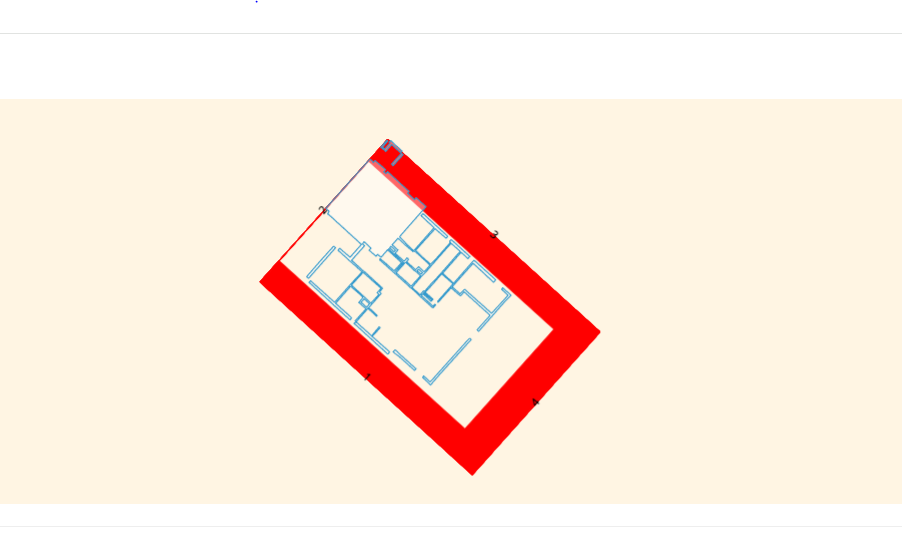
Once you have uploaded the IFC model to the platform, go to the Map tab and select “View Setbacks.” If the building footprint falls within the parcel boundary, this indicates that your model is correctly geolocated in the X and Y directions. For the Z elevation, check the elevation value of each IfcBuildingStorey in reference to the DMD value. In the figure below, the red lines are the parcel boundary and the blue lines are the building blocks.
Q55: I reviewed the e-checking results, but I think there are few false positive errors, should I worry?
No. The DM permitting engineer will review the e-checking results and only ask for fixing any real violations.
Q56: I believe my uploaded model to the platform meets the minimum information requirements, what should I do next?
You can submit the model for review by DM engineer.
Q57: I have received an email from the permitting engineer saying my BIM submission doesn’t meet the minimum requirements, what do I do next?
The assessment report should highlight what the issue is with the submission. You may need to rectify the issue and re-submit again. If the report does not include enough information, you can contact the permitting engineer for more details.
Q58: Does the approval of my BIM submission mean I can get the BIM permit?
No. The approval is only regarding complying with the DM BIM submission requirement.
Q59: Why model upload to the Build In Dubai platform fails?
My upload to the online submission fails. There could be different reason why the upload and processing to the platform fails. Please check the error list below.
| Error Code | Reason |
|---|---|
| BID_10001 | This error indicates a DB issue. Please contact the BIM support team for assistance. |
| BIM_10005 | This could be an issue with one of DM service. Please contact the BIM support team for assistance. |
| BIM_10007 | This error indicates that the system has failed processing the models. This could be resulted of using the wrong IFC schema or measurement units. Make sure all models are exported in IFC 4.0 schema and models are exported using Meter unit. |
| BIM_10008 | This error indicates that the server is busy processing many requests. Please try again later. |
Misc.
Q60: Where can download the DM BIM standard, sample and related resources?
Latest material can be found on https://buildindubai.gov.ae/bim
Q61: Is there any recorded help video?
Yes. The are help videos available on https://buildindubai.gov.ae/bim
Q62: I still feel that I have questions I don’t find the answer for online, who should I contact?
For more inquiries, please contact the following email address: geodubai@dm.gov.ae. Please state the project id in the email subject.
APPENDIX I – QAQC Issues
| QAQC Issue | Reason & Resolution |
|---|---|
| Space [SpaceGlobalId] for unit [UnitNo] contain conflict unit data. | This happens when spaces belong to the same unit have different unit value. To rectify make sure all spaces under the same unit have the same unit value. |
| Properties for all spaces of unit [UnitNo] should be the same. | This happens when spaces belong to the same unit have different unit information. To rectify make sure all spaces under the same unit have the same unit information. |
| Space [SpaceGlobalId] for unit [UnitNo] contain conflict Building data | This happens when spaces belong to the same unit have different building information. To rectify make sure all spaces under the same unit have the same building information. |
| BuildingOccupancyUsageCode/ BuildingOccupancyUsageDescription property for Space [SpaceGlobalId] is empty | This happens when space information is incomplete. To rectify fill in all required fields for spaces. |
| Usages defined in the BuildingOccupancyUsageCode property for Space [SpaceGlobalId] must be also included in the Building usages property of IfcBuilding. | This happens when BuildingOccupancyUsageCode used in spaces is not included in the ‘building usages’. To rectify make sure BuildingOccupancyUsageCode used in spaces also added to OccupancyUsageCode of the building. |
| Space’[SpaceGlobalId] is a Unit Space. UnitNo/UnitUsageCode/UnitUsageDescription should be specified. | This happens when a space belong to a unit and the space information is missing its unit information. To rectify make sure unit information is filled in. |
| Invalid Level Names… | This happens when a level name is not per the standard. To rectify make sure level name is correct and follow the naming convention. |
| Building number on IfcBuilding is not the same as the building number from the Ifc file. | This happens when the building number in the file name (BIxxxxxx) is not the same in the building property ‘BuildingNum’ in the ifc model. To rectify make sure the same building number used in the file name and in the model. |
| Parcel number on IfcProject is not the same as the number from the Ifc file. | This happens when the parcel number in the file name (PAxxxxxx) is not the same in the pacel property ‘ParcelId’ in the ifc model. To rectify make sure the same Parcel number used in the file name and in the model. |
| Invalid Unit. The unit used is [MeasurementUnit] | This happens when the model is exported not in Meter. To rectify make sure to change the model unit before export to IFC to Meter. Unit can change back to original after exporting. |
| Attribute [AttName] for sub Type [SubTypeFullName] is required but not found in the model. | This happens when the model entities don’t include the required information or the export steps to IFC is not correct (for example the supplied property sets file not used). To rectify make sure the required information is supplied in the model and follow the export steps mentioned in BIM E-Submission_Revit Appendix.pdf. |
| Attribute [AttName]for sub Type [SubTypeFullName] has wrong data type. Expected type is [ExpectedType] but actual type is [AcutalType] | This happens when the provided value for an attribute is in the wrong data type (for example provided decimal number when an integer value is expected). To rectify make sure the correct data type used as per in the standard file Appendix B_Model Attribute Matrix.xlsx |
| BuildingOccupancyUsageCode attribute for IfcBuilding is missing | This happens when the attribute is not added to the model. To rectify make sure all required building attributes as per ‘Appendix B_Model Attribute Matrix.xlsx’ added to the model. |
| BuildingOccupancyUsageCode [UsageCode] is not a standard usage | This happens when a wrong value is used. To rectify make sure only values from ‘Appendix C_Usages Codes.xlsx’ are used. |
| BuildingOccupancyUsageCode [UsageCode] for Space [SpaceGlobalId] is not a standard usage. | This happens when a wrong value is used. To rectify make sure only values from ‘Appendix C_Usages Codes.xlsx’ are used. |
| Unit usage’s building occupancy [BuildingOccupancy] for Space [SpaceGlobalId] is not part of any of the building occupancy usage. | This happens when the UnitUsageCode used for the space is not part of any of the building occupancy usages. To rectify make sure that UnitUsageCode is one of BuildingOccupancyUsageCode list. |
| SpaceUsageCode [SpaceUsageCode] for Space [SpaceGlobalId] is not a standard usage. | This happens when the SpaceUsageCode used for the space is not a standard value. To rectify make sure only values from ‘Appendix C_Usages Codes.xlsx’ are used. |
| SpaceUsageDescription [DescriptionValue] for [SpaceUsage.UsageCode] code for Space [SpaceGlobalId] is not a standard value. | This happens when the SpaceUsageDescription used for the space is not a standard value. To rectify make sure only values from ‘Appendix C_Usages Codes.xlsx’ are used. |
| SpaceUsageDescription for Space [SpaceGlobalId] is missing. | This happens when the SpaceUsageDescription is missing. To rectify make sure all required space attributes as per ‘Appendix B_Model Attribute Matrix.xlsx’ added to the model. |
| UnitUsageCode ‘{space.UnitUsageCode.Value}’ for Space [SpaceGlobalId] is not a standard usage. | This happens when the UnitUsageCode used for the space is not a standard value. To rectify make sure only values from ‘Appendix C_Usages Codes.xlsx’ are used. |
| UnitExtraInfo [UnitExtraInfoValue] for Space [SpaceGlobalId] is not in a correct format. | This happens when the UnitExtraInfo is missing. To rectify make sure all UnitExtraInfo is provided and follow the correct format as described in ‘Appendix C_Usages Codes.xlsx’ |
| UnitExtraInfo for Space [SpaceGlobalId] is missing. | This happens when the UnitExtraInfo is missing. To rectify make sure all UnitExtraInfo is provided and follow the correct format as described in ‘Appendix C_Usages Codes.xlsx’ |
| Space [SpaceGlobalId] has a unit details. Spaces that are not part of a unit should not have unit details. Examples of these are Elevator (Lift opening),Garbage Chute and Staircase Opening. | This happens when wrongly the UnitNo attribute for spaces is provided and the space is not part of any unit (for example Garbage Chute doesn’t need a unit no.. To rectify make remove UnitNo for spaces that don’t belong to actual unit. |
APPENDIX II – Revit Tips
Check “BIM E-Submission_Revit Appendix.pdf” document for full details.